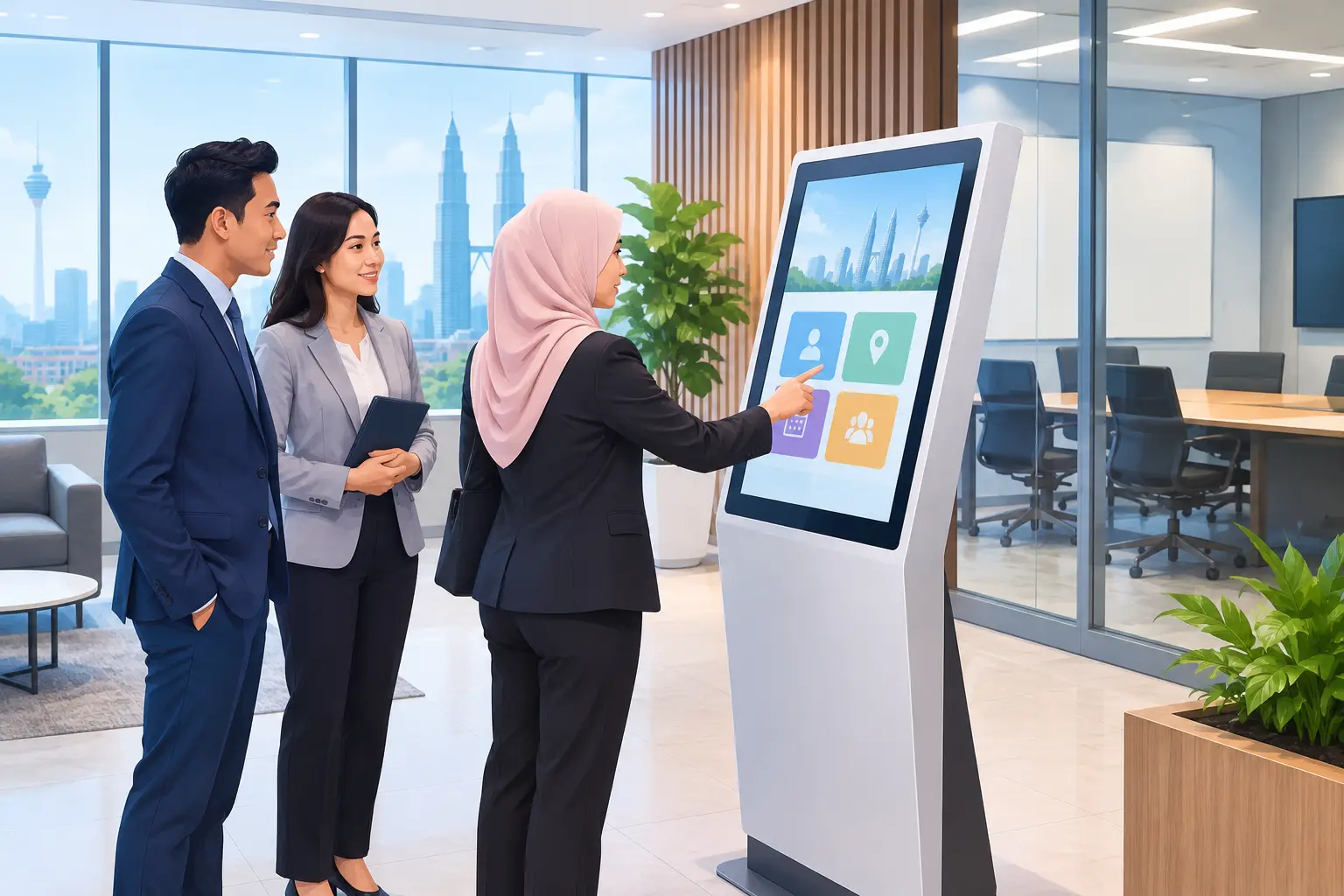
Touch Screen Kiosk Solutions Malaysia Buyers Need
Touch screen kiosk solutions Malaysia buyers choose should solve one clear visitor problem without creating another for IT or facilities. The right unit can reduce reception queues, improve directions and present information consistently, but only when its screen, enclosure, software, location and support are planned together.
What do touch screen kiosk solutions in Malaysia do?
A kiosk gives visitors, staff or students a task they can complete on a screen rather than at a counter. That task may be checking in for an appointment, selecting a meeting room, viewing a building directory, registering attendance or finding a department.
For a corporate office in Kuala Lumpur, a reception kiosk can collect visitor details before the receptionist is free. In a school, it can show campus announcements and event information. In a clinic or insurance branch, it can guide people to the right service counter before they join the wrong queue.
The screen is only one part of the purchase. A kiosk that is hard to read in a bright lobby, too high for some users or loaded with confusing menus will not reduce staff workload. It may simply move the queue from the reception desk to the device.
Which kiosk type suits your site?
Start with the user journey. If a visitor only needs to find a room or department, a directory kiosk may be enough. If they must enter personal details, print a ticket or scan a QR code, you need to plan for the right peripherals and data controls from the start.
| Kiosk type | Common use | What to consider before buying | |---|---|---| | Wall-mounted touch kiosk | Directories, meeting-room information and staff notices | Saves floor space, but needs a suitable wall position, power point and cable route | | Freestanding touch kiosk | Visitor registration, self-service enquiries and wayfinding | More visible in a lobby, but requires stable placement and enough circulation space | | Countertop touch kiosk | Reception check-in, surveys and small self-service tasks | Compact and practical, but less suitable where people need privacy or wheelchair access |
A freestanding model is often the most noticeable choice for a busy entrance. It also needs more thought. Place it too close to the door and people will block the entrance while reading the screen. Place it behind the reception desk and it loses its purpose.
Screen size depends on the content and viewing distance. A 21.5-inch or 32-inch display can suit a simple check-in form. A larger 43-inch or 55-inch display is more appropriate for a directory, map or mixed content that people view from further away. Bigger is not automatically better if the interface still uses small text and crowded buttons.
What should a touch kiosk include?
The best specification comes from the job the kiosk must do, not a feature checklist. A basic information kiosk may need only a commercial-grade touch display, an Android or Windows player, secure network access and content management. A visitor-management kiosk may also need a camera, QR or barcode scanner, printer, card reader or badge printer.
Choose the operating system around the software you already use or plan to deploy. Windows can make sense when the kiosk runs a business application designed for Windows. Android can be suitable for simpler apps and controlled content. The key question is who will update the application, user records and display content after installation.
Commercial displays are designed for longer operating hours than a consumer television. This matters in a building lobby, hospital waiting area or education campus where the screen may run throughout the day. Ask about the expected operating schedule, warranty coverage and whether the enclosure allows safe service access.
Touch performance also needs a practical test. Visitors may use one finger, a stylus or a hand carrying a bag. The interface should have large touch targets, high-contrast text and a clear route back to the home screen. If the kiosk will be used outdoors or near strong daylight, screen brightness and glare become major buying factors.
Privacy deserves equal attention. A kiosk used for visitor registration should not leave personal details on screen for the next person to see. Build in automatic session time-outs, limit the information displayed and decide whether any data is stored locally. Your IT and compliance teams should review this before the system goes live.
Where should you install a touch screen kiosk?
Walk the route as a visitor would. From the entrance, can they immediately see what the kiosk is for? Can they stand at it without blocking a lift lobby, fire exit, corridor or reception counter? Is there enough room for wheelchair access and for a person to step aside once they have finished?
Power, network connection and cable containment should be agreed before delivery. Wi-Fi may be adequate for digital signage content, but a wired connection can be preferable where registration data or business systems are involved. It depends on the site, network policy and the consequences of an interrupted connection.
Content ownership is another overlooked issue. Someone in the organisation needs responsibility for updating maps, tenant lists, announcements and event details. An outdated directory creates more enquiries for reception, not fewer. Set an update process before launch, including who checks information when staff, rooms or departments change.
How do you avoid a kiosk that staff stop using?
Run the intended journey with real users before finalising the design. A facilities manager may know where every department sits, while a first-time visitor does not. Watch where people hesitate, which labels they misunderstand and whether they can complete the task without asking for help.
Keep the first screen focused. A lobby kiosk does not need to show every company message, service and policy at once. Give people two or three clear choices, such as “Check in”, “Find a meeting room” and “Building directory”. Secondary information can appear after they choose a route.
Installation should include testing of touch response, connectivity, peripherals and the actual content shown on screen. User training matters too, especially for reception and facilities teams who will support visitors on the first few days. For organisations that want one accountable supplier, Hytech Office Automation can arrange site survey, delivery, installation and user training, with a response within 4 working hours for after-sales support.
What should you ask a kiosk supplier?
Ask the supplier to explain how the unit will work at your location, not just what appears on a quotation. They should assess the mounting position, power source, network requirements, screen orientation and the people using it. A lobby kiosk for a financial-services office has different privacy needs from a campus wayfinding screen.
Clarify what is included in the scope. This may cover the display, enclosure, player, touch function, installation and training, but software licences, visitor-management platforms, custom interface design and peripherals can be separate items. Getting this clear early avoids a kiosk arriving before its required application is ready.
Also ask what happens when the content needs changing or a component requires attention. A lower initial specification can be sensible for a straightforward directory. For a reception process that runs every working day, dependable hardware and responsive support usually carry more value over time.
Frequently asked questions
Can a touch screen kiosk replace a receptionist?
Usually, no. It can handle repetitive tasks such as check-in, directions and basic enquiries, allowing reception staff to focus on visitors who need help. A kiosk works best as part of a better reception process, not as a complete substitute for human assistance.
What screen size is suitable for a reception kiosk?
A 21.5-inch or 32-inch screen often suits check-in forms and short interactions. Choose a 43-inch or 55-inch screen when users need to read maps, directories or announcements from a greater distance.
Do kiosks need a wired internet connection?
Not always. Wi-Fi can work for simple content, but wired connectivity may be the safer choice for visitor registration, access to internal systems or sites with heavy wireless use. Your IT team should confirm the preferred setup.
Can a kiosk display digital signage when nobody is using it?
Yes, it can show announcements, campaigns, corporate messages or event information while idle. The idle content should not hide the main purpose of the kiosk, and users should be able to start their task with one obvious touch.
How long does kiosk installation take?
Timing depends on the site readiness, mounting method, network access, software and peripherals. A site survey helps identify issues such as missing power points, wall reinforcement or content approvals before delivery is scheduled.
A kiosk earns its place when a visitor can use it without being told how. Book a showroom demo at the Maxsmart Experience Centre in Pavilion Damansara Heights and let an Office Solutions Specialist discuss the right screen size, placement and workflow for your site.