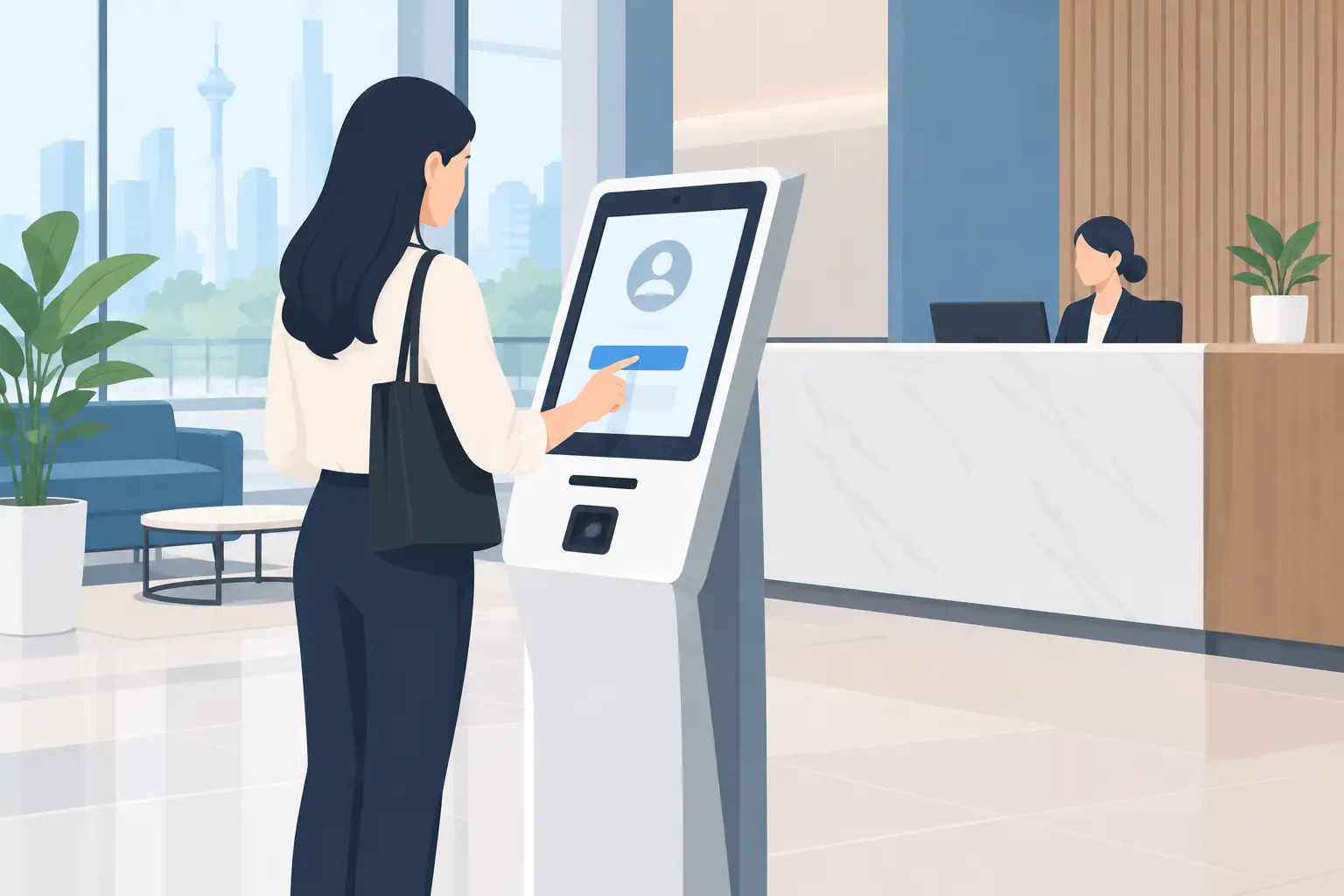
Digital Information Kiosk: What Should You Buy?
A digital information kiosk gives visitors, staff or students the information they need without sending them to a reception counter. The right unit depends on where it will stand, who will use it and whether you need simple announcements, wayfinding, check-in or interactive self-service.
What is a digital information kiosk used for?
A digital information kiosk is a standalone screen, usually mounted on a floor stand or wall, that displays information or lets users select what they need. In a Kuala Lumpur office lobby, it may show a visitor directory and company notices. In a school, it can display timetables, event details and campus maps. In a clinic or government-facing site, it may direct visitors to the correct counter before they queue.
The practical benefit is consistency. Reception staff do not need to repeat basic directions all day, while the organisation can change messages quickly when an event, room location or operating notice changes.
Not every location needs a touchscreen. If the aim is to display a welcome message, safety notice or promotional campaign, a non-interactive digital signage screen can be simpler to operate and easier to maintain. A touchscreen kiosk is more suitable when the visitor must search, choose, register or request information.
Digital information kiosk or digital signage?
These products are often grouped together, but they solve different problems. The decision comes down to whether the audience is only viewing content or needs to take an action.
| Requirement | Digital information kiosk | Digital signage display | |---|---|---| | Main purpose | Lets users search, select or submit information | Shows scheduled messages, images and videos | | Touch function | Usually included | Usually not required | | Good locations | Lobbies, reception areas, campuses, clinics | Lift lobbies, corridors, meeting areas, retail-facing spaces | | Content approach | Menus, directories, maps, forms and FAQs | Announcements, campaigns, notices and dashboards | | Planning priority | User journey and screen response | Visibility, scheduling and message design |
A kiosk is not automatically the better choice because it has more functions. A busy lift lobby, for example, may benefit more from a large display that people can read at a glance. A visitor waiting at reception may have enough time to use a touchscreen directory or browse building information.
What screen size should your kiosk have?
Screen size should follow viewing distance and the amount of information on screen. A 43-inch unit can work well beside a reception desk, outside a training room or in a smaller school foyer. A 55-inch screen is often a more comfortable choice for a main lobby because text, maps and buttons are easier to read from a short distance away.
For a large entrance or public corridor, consider whether one larger display, an LED display wall or multiple screens will communicate the message more clearly. A kiosk with tiny text is not useful simply because it fits the available floor space.
Touchscreen layouts also need room to breathe. Buttons should be large enough for different users, including visitors who are unfamiliar with the building or less comfortable with technology. If your directory has 20 departments, forcing them onto one crowded page will create queues rather than reduce them.
Where should a digital information kiosk be placed?
The best location is usually where a visitor has a question. That may be just inside the entrance, near reception, outside an event hall or at a junction between floors. Placing the kiosk behind a waiting area or beside a door people rarely use wastes the investment.
Check the surrounding conditions before choosing hardware. Direct sunlight can make a screen hard to read. A narrow corridor can make a floor stand an obstacle. A public-facing area may need a tougher enclosure, secure mounting and cable management. If the kiosk is for wheelchair users, the height and reach of the screen need attention too.
Power and network access matter as much as appearance. A unit may run content from an internal player, Wi-Fi or a wired network, depending on the application. Wired connections are generally worth considering where content is business-critical or where Wi-Fi coverage is inconsistent.
What content should appear on the kiosk?
A kiosk should answer the first question a visitor is likely to ask. For a corporate office, that might be: “Where is this meeting room?” For a college, it may be: “What is happening today?” For a healthcare setting, it could be: “Which counter should I visit?”
Start with a short home screen. Use clear labels, high-contrast colours and plain language. Put the most common actions first, rather than arranging options according to your internal department structure. Visitors may not know what “Corporate Services” means, but they understand “Find a department” or “Visitor information”.
Content also needs an owner. Someone in facilities, corporate communications, administration or IT should be responsible for checking that notices, maps and contact details remain current. An outdated kiosk can create more frustration than a printed notice because people assume a digital screen is current.
For organisations that want to show videos, company updates or emergency messages alongside interactive information, plan the content rules from the start. Decide who can publish updates, what approval is needed and how quickly urgent messages must be displayed.
Do you need software integration?
It depends on what the kiosk must do. A simple directory or information screen may only need a content management platform that lets authorised staff update text, images and videos. This keeps administration straightforward and avoids involving IT for every small change.
A visitor registration kiosk, room booking display or queue-management screen can require more planning. You may need it to work with an existing visitor system, calendar, database or ticketing process. Ask early whether the software is cloud-based, whether it needs a dedicated network connection and what happens if the internet is unavailable.
Do not buy a kiosk based only on its screen specification. The harder part is often the workflow behind it. If staff must manually update five systems to change one office location, the process will not last.
What should you ask before buying a kiosk?
Before requesting a proposal, be clear about the people, location and task. An Office Solutions Specialist can assess the site more accurately when you can explain the expected number of users, the content type, available power points and whether the screen is interactive.
Ask about installation scope, mounting, network setup, staff training and after-sales support. A kiosk is a visible part of your premises, so a loose cable, poor screen angle or confusing interface will be noticed quickly. It is also sensible to ask how the unit will be restarted, updated and cleaned by your own team.
For multi-site organisations, consistency is a major consideration. The same screen design and content process should work in a Selangor headquarters, a branch office and a school campus, while allowing each site to show local notices.
Frequently asked questions
Can a digital information kiosk be used without a touchscreen?
Yes. A non-touch display can still function as an information point for announcements, directions and promotional content. Choose this option when visitors only need to read or watch, rather than search for information themselves.
Is a kiosk suitable for a reception area?
Yes, especially when reception staff repeatedly answer questions about meeting rooms, departments or visitor procedures. It should support the receptionist, not replace personal assistance for guests with more complex needs.
How often should kiosk content be updated?
Update it whenever a practical detail changes, such as room names, operating hours, event schedules or safety instructions. Review all content regularly so old campaigns and expired notices do not remain on screen.
Can one kiosk show both directions and company announcements?
It can, provided the essential visitor task remains easy to find. Keep wayfinding or check-in options on the main screen, then use secondary areas for news, videos or campaign messages.
Does a kiosk need an internet connection?
Not always. Basic content can be run locally, but a network connection is useful for remote updates, cloud content management and integrations. The right approach depends on your update frequency and IT policy.
What support should be included after installation?
You should expect clear user training, a contact point for faults and practical guidance on content updates. Hytech Office Automation provides installation and user training, with a response within 4 working hours for after-sales support matters.
A well-planned kiosk should make the next action obvious, not make visitors work harder to find it. Book a showroom demo at the Maxsmart Experience Centre in Pavilion Damansara Heights to test a digital information kiosk in a real boardroom setting before deciding on the right setup.