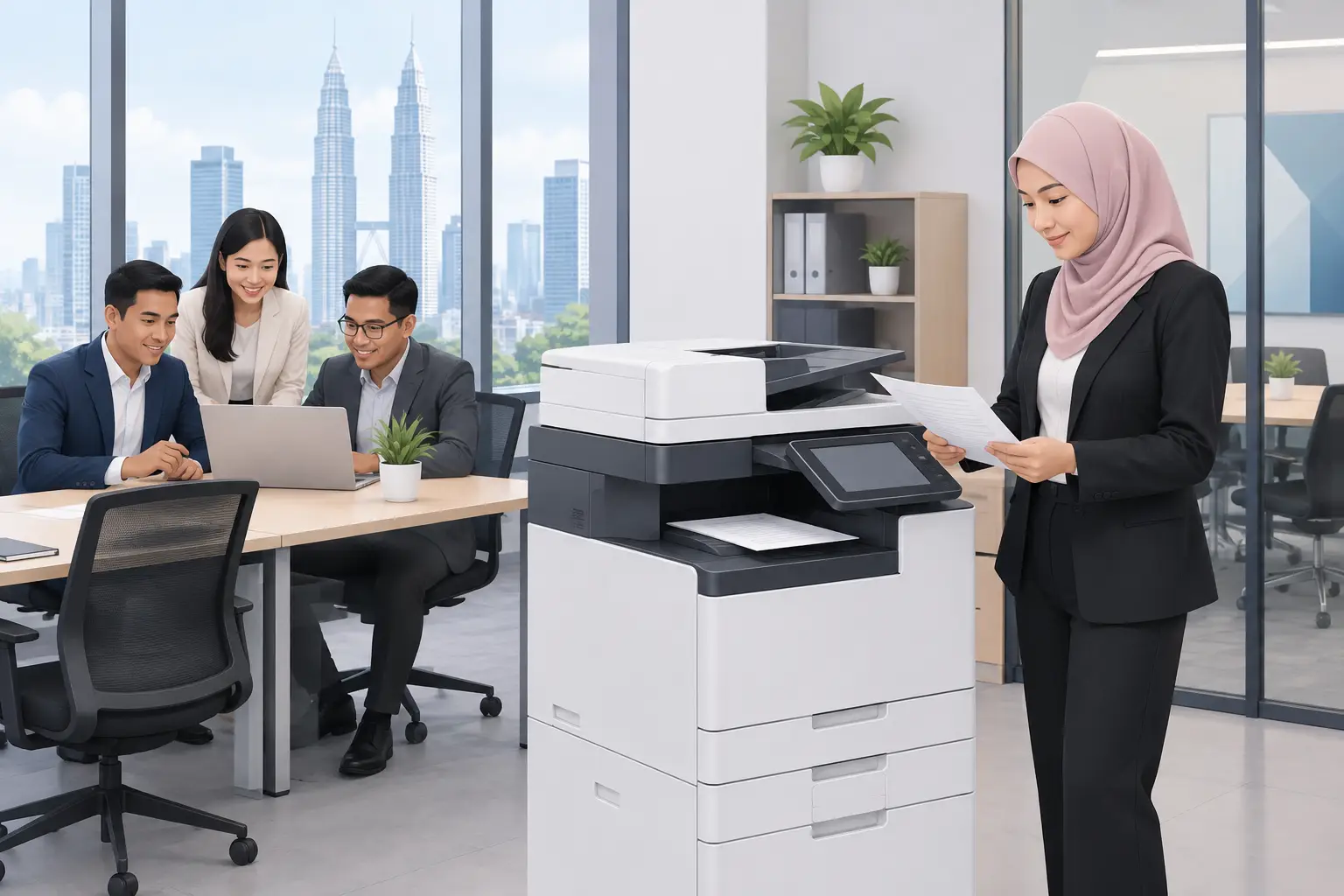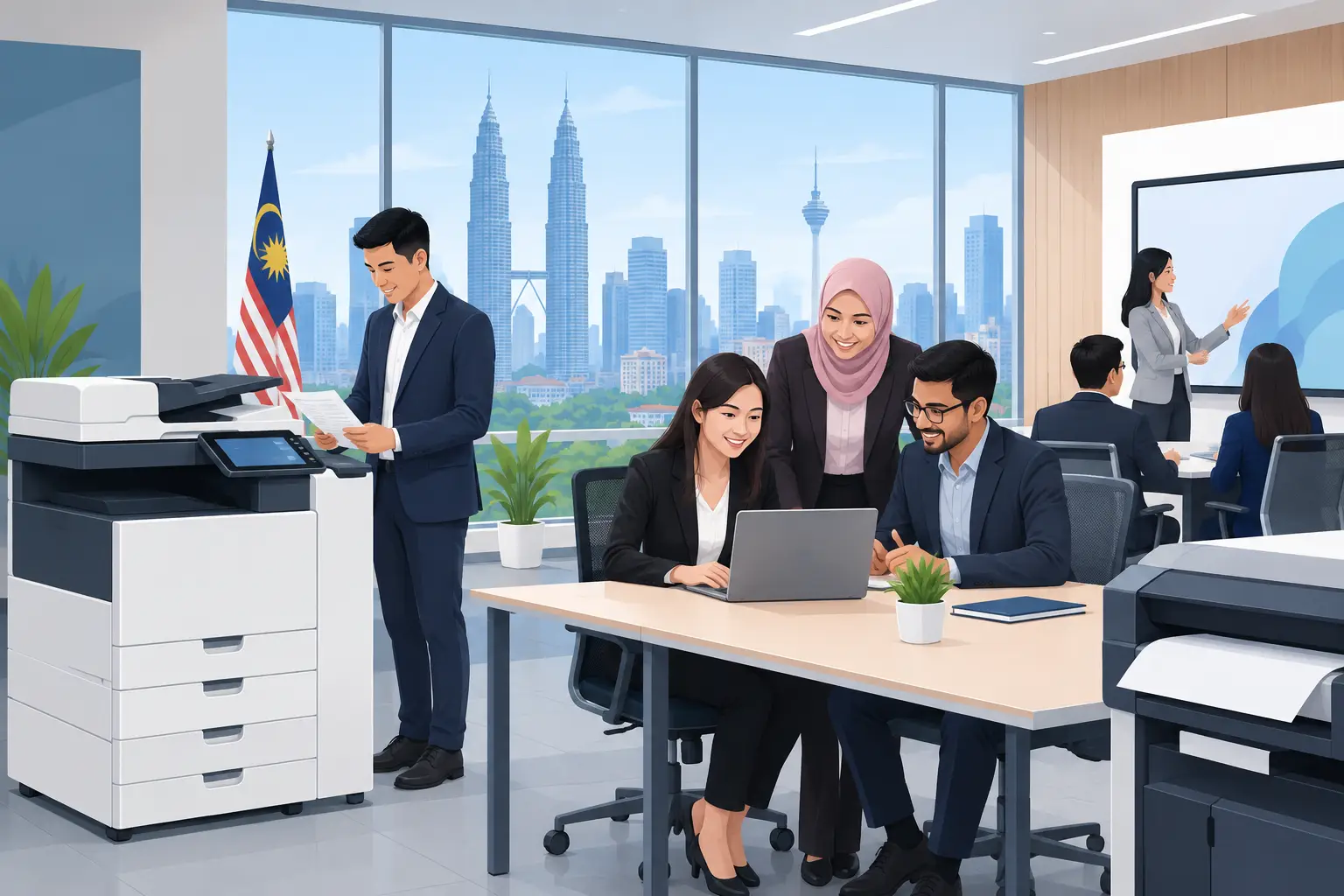
Is a Paperless Office Right for Your Team?
A paperless office can reduce lost documents, slow approvals and unnecessary printing, but it does not mean removing every sheet of paper overnight. It works best when you first fix the workflows that create the most delay, then give staff simple equipment and clear rules to follow.
What does a paperless office actually mean?
For most Malaysian organisations, a paperless office means using digital files, approvals and meeting tools wherever they are more practical than printed copies. Staff can search for documents, share the latest version and approve routine requests without waiting for a physical folder to move between desks.
It is not a rule that every document must disappear. Finance teams may still need printed records for selected processes. Schools may print examination materials. Reception areas may require forms for visitors who cannot use a device. The sensible aim is less avoidable paper, not paper for paper's sake.
The change is usually most visible in three places: daily administration, printing and scanning, and meeting rooms. These are also the areas where poorly planned technology can create more work than it removes.
Why do offices still rely on paper?
Paper survives because it feels immediate. Someone can scribble a note, pass a document across a table, or print a pack before a meeting with little planning. The problem begins when that convenience becomes a process.
A printed document has no automatic version control. It can be left on a printer, filed under the wrong name or taken home. When changes are made, staff may end up comparing several copies to find the current one. That costs time, particularly for procurement, HR, accounts and project teams handling frequent approvals.
Meeting rooms are another common source of waste. A presenter prints handouts because the projector cable is unreliable, the display is too small, or nobody knows how to connect. A suitable interactive flat panel display (IFPD) gives the room a shared screen for presentations, annotations and video calls. It does not replace document management software, but it stops meetings from defaulting to printed packs.
Where should you start with a paperless office?
Start with a workflow, not a product list. Ask where staff print because they have no easier option. It could be invoice approval, staff onboarding, tender review, training attendance or weekly management meetings.
Choose one process that is repeated often and causes visible frustration. Map who creates the document, who checks it, where it is stored and how long approval takes. Then decide which steps genuinely need paper. A signature may be necessary in some cases, but printing three draft copies for internal comments rarely is.
Set simple file naming and access rules before introducing new screens or scanners. If nobody knows where the final document sits, digitising it simply creates a better-looking mess. Your team should know which folder or system holds the approved version, who can edit it and when older files should be archived.
Training matters as much as the equipment. Staff need to practise scanning to the right location, sharing a document during a meeting and using the chosen approval process. A system that works only for the IT manager is not a working office system.
Paperless office tools that solve practical problems
The right equipment depends on how your people work. A small professional office may mainly need reliable scan-to-folder workflows and a meeting display. A training centre may need a larger IFPD for workshops. A reception area may benefit from an interactive kiosk or digital signage rather than stacks of printed notices.
| Workplace task | Paper-heavy habit | Practical digital alternative | |---|---|---| | Invoice and form handling | Printing, signing and filing folders | Scan documents to a controlled shared location and route approvals digitally | | Team meetings | Printed agendas and slide packs | Share content on an IFPD and annotate the agreed actions on screen | | Training sessions | Photocopied manuals and flip-chart notes | Use an IFPD to display materials, mark up content and save session notes | | Visitor information | Posters changed by hand | Use digital signage for notices, directions and campaign messages | | Large document scanning | Staff use different desktop scanners | Use a properly configured multifunction photocopier with defined scan destinations |
A multifunction photocopier still has a role in a paperless office. It is often the bridge between old records and usable digital files. The priority is not simply scanning faster. It is making sure scans are readable, correctly named and sent to the right destination without staff emailing documents to themselves.
For businesses watching cash flow, photocopier rental is meter-based: a base rental plus a per-copy charge. Published options start from RM48 a month. This can suit organisations that still need controlled printing while gradually reducing their print volume.
For meeting and training spaces, an IFPD can be purchased outright or through a 36-month instalment plan from about RM203 a month. Screen size should follow the room, viewing distance and number of participants. A screen that is too small simply pushes staff back towards printed handouts.
How do you reduce printing without disrupting staff?
Avoid blanket rules such as “no printing from Monday”. They often frustrate teams that deal with customer-facing forms, regulated records or physical mark-up work. Instead, introduce practical defaults.
Set printers to double-sided and black-and-white where appropriate. Use secure print release so confidential pages do not sit unattended in the output tray. Review monthly print volumes by department, not to blame users, but to spot processes that still depend on paper because a digital alternative is missing.
Make digital meetings easier than paper meetings. If users can walk into a room, connect a laptop and share content quickly, fewer people will print backups. For Zoom and Microsoft Teams rooms, test the camera, microphone, display and connection process as one system. A good screen on its own will not solve a poor video call.
Also plan for exceptions. Keep a clear process for documents that must be printed, retained or physically signed. Staff are more likely to follow the new approach when they know it accounts for real operational needs.
Can an IFPD support training and HRDC claims?
An interactive flat panel display (IFPD) can support internal training by giving facilitators a large shared workspace for slides, live annotation and collaborative exercises. It can also help training teams keep materials digital rather than repeatedly printing manuals and flip-chart sheets.
IFPDs are the only Hytech product category that may be HRDC claimable, through HRD Corp's Training Facilities and Renovation Scheme (ALAT). The employer must apply before purchasing, buy within six months of approval and place the panel in a training venue for training use only. HRD Corp decides each application, and the annual cap is 50% of the levy balance as at 1 January.
Delivery and installation alone are not claimable. Hytech can help customers with the HRDC claim process, but is not an HRD Corp training provider.
What can go wrong with a paperless office?
The most common mistake is buying technology before agreeing on the process. A new photocopier or display may improve one step, but it cannot decide who owns a document, where it is filed or who approves it.
The second mistake is forgetting security. Digital access should match job roles, especially for HR records, financial documents and student information. Shared folders need permissions, and devices in meeting rooms should not leave confidential files visible for the next group.
Finally, do not ignore support. If the meeting-room screen will not connect before a board meeting, or scanning stops at month end, staff will return to the methods they know. Confirm installation, user training and service arrangements before rolling out a new workflow. Hytech provides a response within 4 working hours for after-sales support.
Frequently asked questions
Does paperless mean we no longer need a photocopier?
No. Many offices still need printing, copying and scanning, especially during a transition. The goal is to use the photocopier for necessary work while removing routine, avoidable prints.
Which department should go paperless first?
Start with the department that has a frequent, repeatable document process and a clear owner. Finance approvals, HR onboarding and meeting administration are often practical starting points.
Will an IFPD remove the need for paper in meetings?
It can reduce printed agendas, slide decks and flip-chart notes when the room is set up properly. Teams still need agreed file-sharing rules and staff who know how to use the screen.
Is every office suitable for a fully paperless process?
Not always. Legal requirements, customer preferences and operational realities may mean some physical documents remain necessary. A mostly paperless process is often more realistic and more useful than an absolute target.
Can we claim HRDC funding for a photocopier or LED display?
No. Under the stated scheme, only an IFPD may be claimable, subject to HRD Corp approval and the scheme conditions. Photocopiers, LED displays, projectors and video conferencing systems are not covered by this claim guidance.
A paperless office should make work calmer, not add another layer of administration. Arrange a complimentary on-site consult with a Hytech Office Solutions Specialist to identify the print, meeting and training workflows worth improving first.