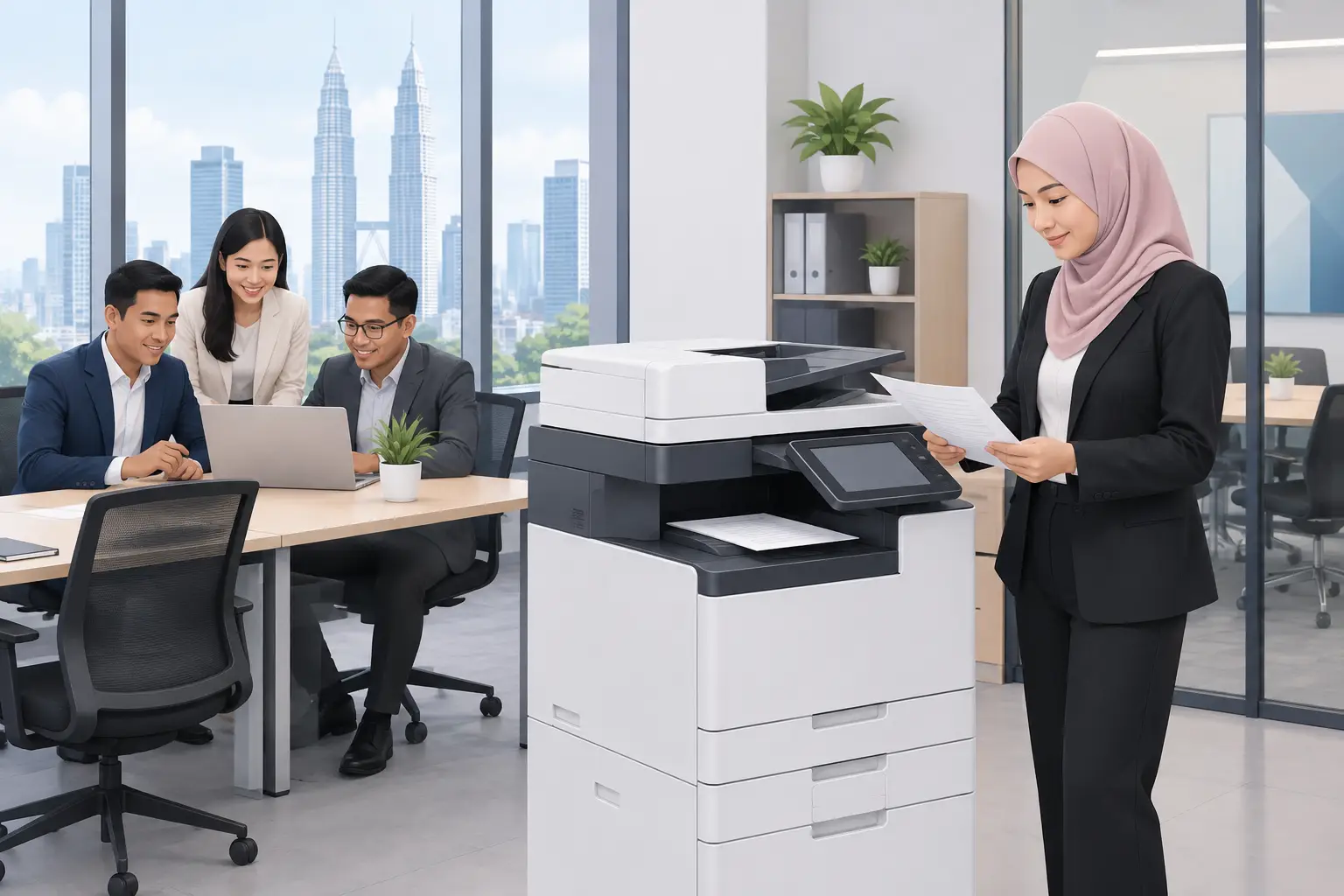
7 Document Security Steps for Malaysian Offices
Document security means controlling who can view, print, share and destroy business information. For most offices, the priority is not buying more software. It is closing simple gaps around photocopiers, shared folders, meeting rooms and paper disposal before they become costly incidents.
Why document security becomes an office problem
A contract left on a multifunction photocopier, a staff list shown during a meeting, or a visitor walking past an unlocked screen can expose more information than many organisations realise. The risk is higher where several departments share devices, visitors move through common areas, or staff work across office and home locations.
Document security also affects daily productivity. When people do not know where confidential files should go, they print extra copies, send documents through personal channels, or keep paper on their desks. Clear rules and correctly configured equipment remove that uncertainty.
The right level of control depends on the document. A public training handout needs little protection. Payroll data, tender documents, medical records and board papers need tighter handling. The aim is proportionate control that staff can follow without slowing routine work.
Document security for printing and copying
Printing is often the weakest point because it is visible, shared and easy to overlook. A document may be secure in a system, then sit unattended in an output tray for twenty minutes.
Secure print release changes that process. Staff send the job to the device but the pages print only after they authenticate at the photocopier, usually with a PIN, card or user login. This is particularly useful for HR, finance, legal, procurement and school administration teams.
| Control | What it prevents | Where it is most useful | |---|---|---| | Secure print release | Uncollected pages in output trays | Shared office photocopiers | | User authentication | Unauthorised copying or scanning | Departments handling sensitive records | | Scan-to-approved folders or email | Files being sent to the wrong destination | Finance, HR and accounts workflows | | Usage reporting | Unexplained high-volume printing | Multi-department offices and schools | | Locked paper recycling and shredding | Recoverable documents in waste bins | All workplaces handling personal data |
A photocopier should be configured around the way your teams actually work. If every person needs a card but only half the staff have one, people will find workarounds. An Office Solutions Specialist should first understand your users, document types and existing access controls.
Photocopier rental can support this approach without a large upfront equipment purchase. It is meter-based, with a base rental plus a per-copy charge, from RM48 a month. Before selecting a device, check that its security functions, print volumes and scanning workflow match the office requirement.
1. Classify documents before deciding on controls
Start with three simple categories: public, internal and confidential. Public documents can be displayed or shared freely. Internal documents are for staff use, while confidential records need named access, controlled printing and a defined retention period.
Keep the labels practical. If every document is marked confidential, the label loses meaning. Concentrate on information that could cause financial, legal, operational or reputational harm if disclosed.
2. Give access by role, not convenience
A general shared drive with broad permissions is easy to set up and difficult to control. Assign access according to a person’s job role, then review it when they move department or leave the organisation.
For sensitive folders, avoid using shared passwords. Named accounts create accountability and make it easier to remove access quickly. This matters for temporary staff, outsourced teams and projects involving tender or commercial information.
3. Use secure release on shared photocopiers
Secure release is one of the clearest improvements an office can make. It reduces accidental exposure and cuts waste from forgotten print jobs.
Set a sensible rule for unclaimed jobs. They should expire after a limited period rather than remaining in the queue indefinitely. For busy reception or admin areas, place the device where the output tray is not exposed to visitors.
4. Control scanning as carefully as printing
Scanning can move a paper document into an uncontrolled digital copy within seconds. Restrict scan destinations to approved email addresses, network folders or document systems where appropriate.
Teams should also agree file naming rules and ownership. A scan called “new document final 2” is hard to locate and easy to duplicate. A consistent naming format makes records easier to retrieve, audit and delete at the right time.
5. Protect information shown in meeting rooms
Boardrooms and training rooms can expose documents through screens as well as paper. Before a meeting starts, check who can see the display, whether a video call is being recorded, and whether the presenter’s desktop contains unrelated confidential files.
An interactive flat panel display (IFPD) should be treated as a shared workplace device. Use individual sign-ins where available, sign out at the end of a session and clear downloaded files or annotations that should not remain for the next group.
For training venues, an IFPD can be purchased outright or through a 36-month instalment plan from about RM203 a month. It is the only Hytech product that may be HRDC claimable, subject to HRD Corp approval and scheme conditions. The employer must apply before purchase, use the panel in the approved training venue for training purposes, and buy within six months of approval.
6. Create a paper disposal routine people will use
Paper remains necessary in many Malaysian offices, schools and healthcare settings. The problem starts when confidential pages go into ordinary recycling bins or are left in meeting rooms after a discussion.
Place locked disposal bins close to printers and work areas that handle personal or commercial information. Define what goes in them, who collects the contents and how often destruction takes place. A procedure that sits in a policy file but is inconvenient at the desk will not be followed.
7. Train staff with real office scenarios
A short briefing is more effective when it covers situations staff recognise. Use examples such as printing a salary adjustment, scanning an invoice, presenting a tender in a meeting room, or passing a document to a colleague who is working remotely.
Training should explain the reason behind each step. Staff are more likely to use secure release when they understand that it protects colleagues and customers, not because IT has added another obstacle. Repeat the message when new equipment is installed and when new starters join.
Who should own document security?
Document security is shared work. IT may manage user access and device configuration. HR, finance, facilities and department heads determine what records need protection and how long they should be kept.
Appoint one person to coordinate the process, but do not expect that person to solve every issue alone. Regular checks between IT, operations and the people using the devices will uncover practical gaps, such as a printer placed beside a public reception desk or an unlocked shared folder.
Frequently asked questions
Is document security only an IT responsibility?
No. IT manages technical controls, but every department creates, prints, stores and disposes of documents. Managers need to set handling rules that staff can apply during normal work.
Do small offices need secure print release?
It depends on what the office prints and who can access the device. Even a small team may handle payroll, customer records or supplier pricing, making secure release a sensible control.
Can a photocopier help track document use?
Yes, many office photocopiers can provide user-based print and copy reporting when configured correctly. Reports support cost control as well as investigations into unusual print volumes.
How often should access permissions be reviewed?
Review access when staff change roles, join a project or leave the organisation. A wider scheduled review every few months is useful for shared folders and sensitive records.
What is the first improvement to make?
Start with the place where documents are most exposed, usually a shared photocopier or an open-access storage folder. Fixing one visible weakness builds staff confidence and shows where the next controls are needed.
A good document security plan should make the right action the easy action. Ask a Hytech Office Solutions Specialist for a complimentary on-site consult to review your printing, scanning and meeting-room document risks before you invest in changes.