How to Set Up Teams Meeting Rooms Properly
A good way to set up Teams meeting rooms is to treat the room as one working system, not a collection of devices. Match the camera, microphone, display and controller to the room size, then test how real staff join calls, share content and hear remote participants.
What do you need to set up Teams meeting rooms?
A meeting room can look well equipped yet still create delays at the start of every call. The usual cause is not Microsoft Teams itself. It is a camera placed too close to the table, microphones that miss quieter voices, or a screen that is too small for people at the back.
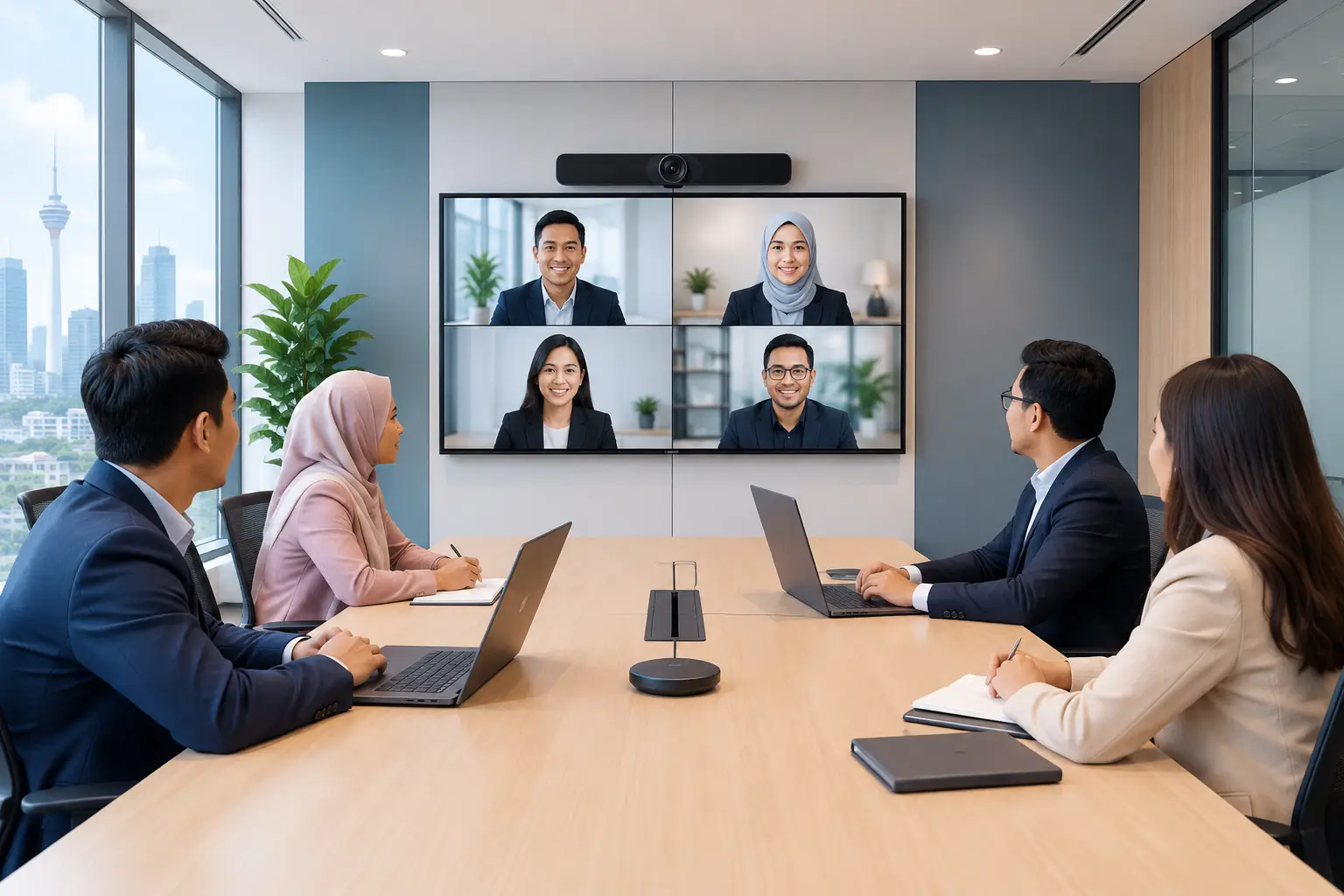
A proper Teams room brings the main parts together: a Teams Rooms computing device, a touch controller, a camera, room audio and a display. Staff should be able to walk in, tap one button to join a scheduled meeting and share a laptop when needed. That is the standard worth planning for.
For a small huddle room, an all-in-one video bar and a 55-inch or 65-inch display may be enough. A boardroom seating 10 to 16 people normally needs a larger display, better microphone coverage and a camera that can frame people at both ends of the table. The right choice depends on room dimensions, seating layout, ceiling height and the amount of daylight coming through the windows.
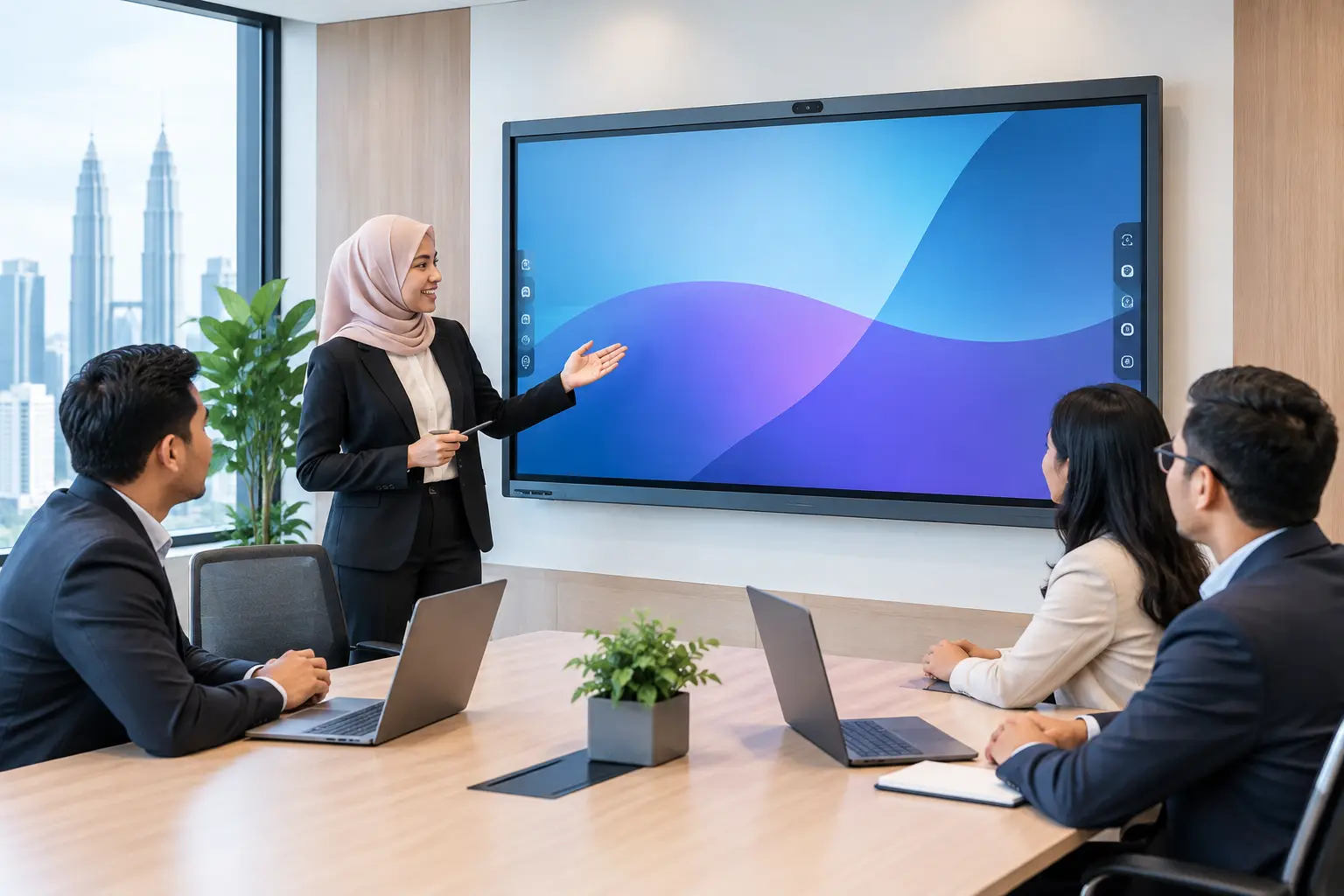
An interactive flat panel display (IFPD) can be a practical choice where teams also annotate documents, sketch plans or run training. For a room mainly used for formal board meetings, a commercial display with a dedicated Teams Rooms system may be the more focused arrangement.
Choose equipment by room size, not by budget alone
Buying the lowest-cost camera or reusing an old television often creates a false saving. Staff lose time reconnecting cables, asking remote guests to repeat themselves and moving chairs to fit into the camera frame. A room that is difficult to use will be avoided, no matter how much was spent on it.
Use the expected number of people in the room as a starting point. Then consider how often external clients, regional branches or overseas colleagues join remotely. If a room is used once a month, a simpler setup may be sensible. If it hosts daily management calls, the user experience and support plan carry more weight.
| Room type | Typical use | Suitable setup | Main planning point | |---|---|---|---| | Huddle room, 2 to 4 people | Quick internal calls and laptop sharing | 55-inch or 65-inch display with an all-in-one video bar | Keep cable access simple for guests | | Meeting room, 5 to 8 people | Department meetings and client calls | 65-inch or 75-inch display, Teams controller and wider-angle camera | Check that every seat is within microphone range | | Boardroom, 10 to 16 people | Leadership meetings and presentations | 75-inch to 86-inch display or dual displays, separate camera and room audio | Plan camera framing, table microphones and screen visibility | | Training room or divisible space | Workshops, town halls and hybrid training | 86-inch IFPD or larger display arrangement, expandable audio and camera system | Design for different seating layouts and presenter movement |
Screen size should be based on viewing distance, not simply wall space. In many boardrooms, a 55-inch screen is readable only for those nearest the table. A larger 75-inch or 86-inch screen gives remote participants, shared spreadsheets and presentations a fair chance of being seen by everyone.
How should a Teams meeting room be installed?
Start with a site survey before equipment is ordered. An Office Solutions Specialist should check the table position, power points, network points, wall strength, lighting and existing ceiling speakers. These details decide whether equipment will work neatly from day one or require visible extension leads and last-minute changes.
Wired network access is usually preferable for the Teams Rooms device. Wi-Fi can work, but a busy office network, guest traffic or weak coverage near the meeting room can affect call quality. IT should also confirm the room account, Teams licence requirements, network security rules and who will manage updates.
Camera placement needs more thought than many buyers expect. Mounting a camera above the display usually gives the most natural eye line for remote participants. It should capture everyone without making faces at the nearest seats look distorted. In a long boardroom, a camera with intelligent framing can help, but it does not replace correct positioning.
Audio is the part users notice first when it goes wrong. Test it with someone sitting at the far end of the table and another person speaking quietly. Listen for echo, air-conditioning noise and sound bouncing off glass walls. A larger room may need extension microphones or ceiling audio rather than relying on a single video bar.
Finally, keep the user journey short. The touch controller should sit where the meeting host can reach it without standing up. Label any guest sharing cable clearly. If the display is also used for local presentations, make sure staff understand when to use Teams Rooms and when to use the display’s own input.
Should you use an IFPD for Microsoft Teams Rooms?
An IFPD is not automatically the right answer for every Teams room, but it can reduce the number of separate devices in a collaboration or training space. Staff can share content, mark up a document and save discussion points without moving to a flip chart.
This arrangement is particularly useful for HR training, project reviews, design discussions and classrooms. A standard display may suit a boardroom better when the priority is viewing presentations and running scheduled video calls rather than touch interaction.
If your organisation is considering an IFPD for a training venue, it may be eligible for HRDC support under HRD Corp’s Training Facilities and Renovation Scheme (ALAT). The employer must apply before buying, use the panel for training only at the approved venue and complete the purchase within six months of approval. Approval is decided by HRD Corp, and installation or delivery on its own is not claimable.
Avoid these Teams room setup problems
The most common mistake is designing around a product specification instead of the room. A high-resolution camera cannot compensate for a poor sightline, and a premium display cannot make a weak microphone sound clear. Walk through a real meeting before making the final decision.
Another issue is treating installation as the finish line. Staff need a short handover on joining scheduled meetings, starting an ad hoc call, sharing a laptop and reporting a fault. Include the receptionist, executive assistant or office administrator if they regularly prepare rooms for visitors.
Support also matters after the room goes live. Decide who checks the room before major meetings, who receives fault notifications and whether there is a clear route to technical help. Hytech Office Automation provides installation, user training and a response within 4 working hours, so office teams are not left coordinating separate AV, display and conferencing suppliers.
Frequently asked questions
Can we use a normal laptop for a Teams meeting room?
Yes, for occasional meetings, but it is less convenient for a room used daily. A dedicated Teams Rooms setup lets staff join scheduled calls from a controller and keeps the room ready without relying on one person’s laptop.
What screen size is suitable for a Teams boardroom?
A 75-inch or 86-inch screen is often more suitable for a boardroom than a 55-inch display, particularly where people sit several metres away. The final size should be checked against the room depth and the type of content being shared.
Do Teams meeting rooms need a wired network connection?
A wired connection is generally the safer option for a fixed room system because it gives more consistent performance. Wi-Fi may be suitable in some sites, but it should be tested during a site survey rather than assumed.
Can staff share their laptop screen in a Teams room?
Yes. Most setups allow sharing through a USB-C or HDMI connection, wireless sharing, or through the Teams meeting itself. The preferred method depends on security policy, guest access and how often visitors use the room.
How long does it take to install a Teams room?
It depends on the room condition and whether electrical, network or wall works are needed first. A site survey identifies these requirements early, which helps prevent installation delays and disruption to scheduled meetings.
Is an IFPD HRDC claimable?
Interactive flat panel displays may be claimable under the applicable HRD Corp ALAT requirements when used in an approved training venue. The employer must receive approval before purchase, and Hytech can help with the claim process but does not decide the application.
See the room before you commit
Before approving equipment for several rooms, arrange a showroom demo at the Maxsmart Experience Centre at Corporate Tower 2, Pavilion Damansara Heights. Bring a typical Teams meeting scenario, including the documents your staff share and the number of people around the table, so you can judge the experience in a real boardroom rather than from a specification sheet.