Which Wireless Presentation System for Meetings?
A wireless presentation system for meetings lets people share a laptop, tablet or phone on the room display without passing cables around the table. The right setup supports the devices your staff and visitors actually bring, protects the company network and starts quickly enough that a 30-minute meeting stays a 30-minute meeting.
Why meeting rooms still lose time to cables
Most meeting rooms already have a screen. The problem begins when the first presenter arrives with a USB-C laptop, the HDMI cable is missing, and the adaptor belongs to someone who is working from home. Five minutes disappear before anyone has discussed the agenda.
That delay looks small until it happens several times a day. It also creates an awkward experience for clients, auditors, training attendees and visiting managers. A room built for discussion should not require staff to troubleshoot connections in front of a group.
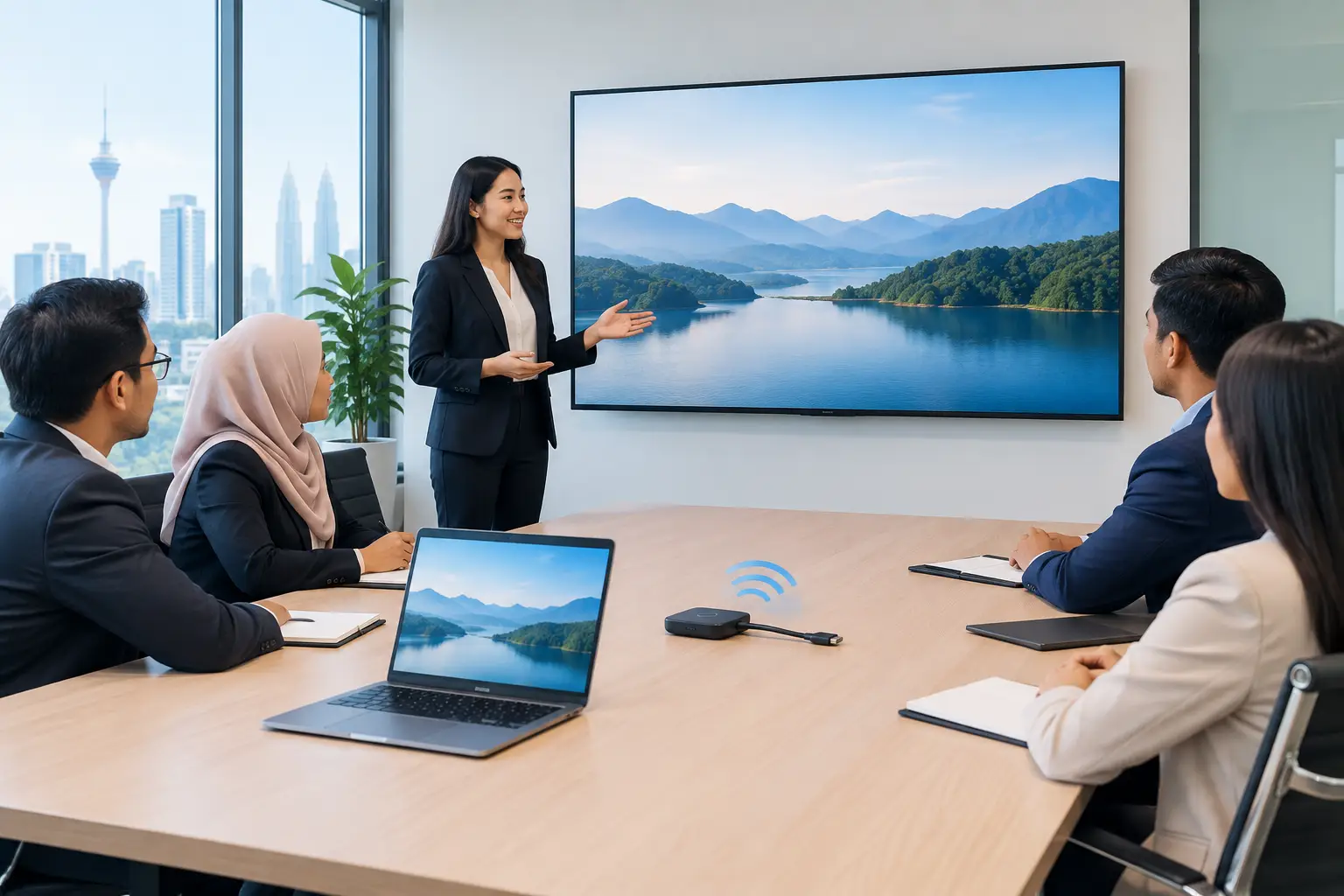
A dedicated wireless presentation setup removes the dependency on one cable or one laptop. The presenter shares content to the main display from their own device, while the room stays usable for the next person. For boardrooms, training rooms and shared project spaces, this is usually a more practical improvement than buying a larger display alone.
What a wireless presentation system for meetings should do
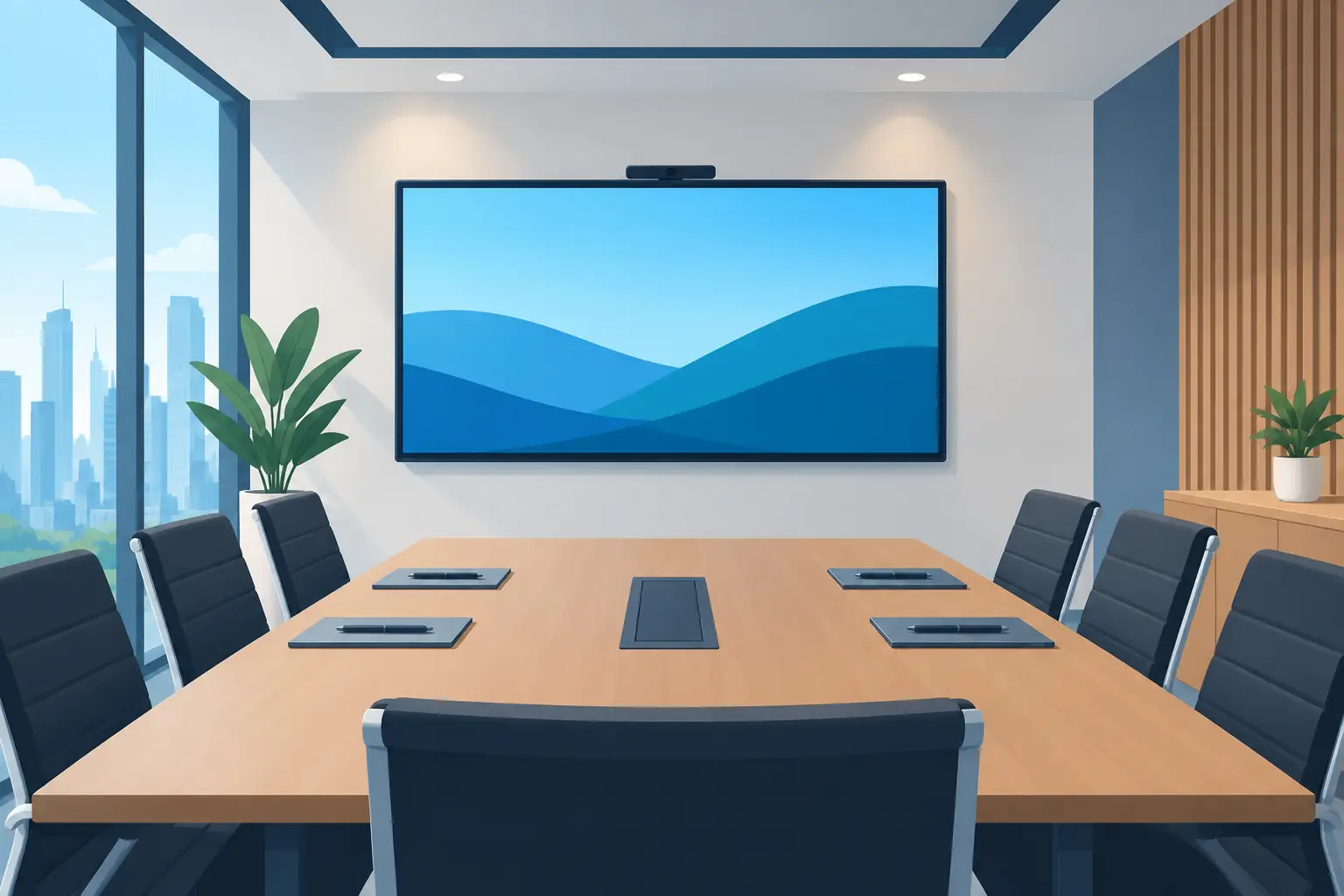
Start with the way people meet in your organisation. A small management room may only need one person to present a spreadsheet or monthly report. A larger boardroom may need several presenters to switch quickly, show content side by side and join a Microsoft Teams or Zoom call.
The system should work with Windows and macOS as a minimum. If your sales team, lecturers or visitors commonly use tablets and phones, check support for iOS and Android too. Do not assume every wireless sharing method handles every operating system equally well.
Speed matters. A good user experience is not about adding more features. It is about opening the sharing function, choosing the room display and presenting without an IT call. The display should show a clear connection prompt, and staff should be able to switch presenters without unplugging equipment or restarting the screen.
Security is equally important. In a corporate office, staff may share financial forecasts, tender documents or customer information. Guest access should be controlled rather than leaving the room display visible to any device on the building Wi-Fi. Your IT team may also require a separate guest network, a PIN code or a physical presentation button.
For a room used for remote meetings, wireless sharing must work alongside the video conferencing setup. The camera, microphones, speakers and display should behave as one room system, not as separate devices staff have to configure each time.
Wireless sharing options compared
There is no single answer for every room. The right choice depends on your users, network rules, meeting format and how often external visitors present.
| Option | Suitable for | Main advantage | Consider before buying | |---|---|---|---| | HDMI cable and adaptors | Small rooms with fixed users | Low initial cost | Cables, adaptors and ports still cause delays | | Consumer screen casting | Informal huddles | Familiar for some staff | May have limited controls and inconsistent guest support | | Dedicated wireless presentation device | Boardrooms and shared meeting rooms | Controlled access and reliable switching | Needs proper network planning and installation | | Interactive flat panel with built-in sharing | Meeting and training rooms | Display, whiteboard and sharing in one device | Choose the screen size and software features for the room |
An HDMI cable still has a place. It is useful as a backup connection and can be the simplest solution for a private office. However, it is not a complete answer for a room used by different departments, senior management and outside visitors.
Consumer casting can appear attractive because it is already available on some televisions and laptops. The trade-off is control. IT teams may find it harder to manage access, while users can face unexpected compatibility issues when presenting from older laptops or restricted corporate devices.
A dedicated wireless system is normally the safer choice where meetings are frequent and the room represents the organisation to customers or partners. It gives the room a consistent process, whether the presenter is from Finance, HR, a school administration team or an external consultant.
Should you choose a display with wireless sharing built in?
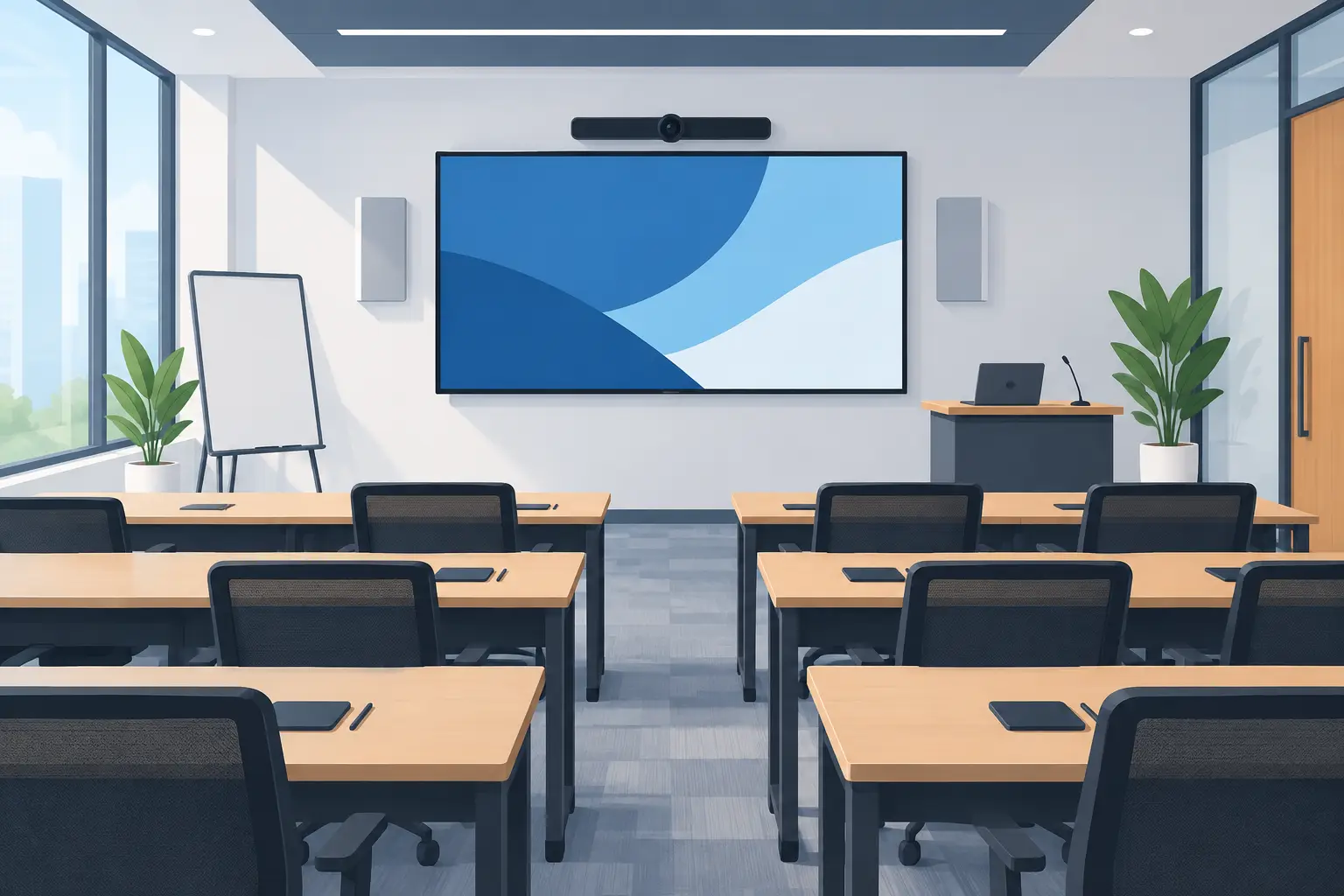
For many organisations, yes. An interactive flat panel can combine wireless presenting, digital whiteboarding and video meeting support in a single front-of-room display. This reduces the number of boxes, cables and remote controls on the meeting table.
Screen size should match viewing distance, not just wall space. A 65-inch panel can suit a smaller meeting room, while 75-inch and 86-inch screens are more appropriate where more people need to read fine details in reports, drawings or training slides. A site survey helps confirm the practical viewing position, power points, wall condition and cable route before equipment is ordered.
An interactive display is particularly useful for training and workshop rooms. Participants can annotate a document, save whiteboard notes and share from more than one device. If the panel is intended for an eligible training venue, it may be HRDC claimable under HRD Corp's Training Facilities and Renovation Scheme, subject to approval before purchase and the scheme conditions. This applies to interactive flat panels only, not to other meeting-room equipment.
MAXHUB interactive flat panels are designed for this type of shared workspace. For organisations working to a tighter budget, it is still worth comparing the room's daily needs rather than paying for functions staff will not use.
Questions to ask before installation
The best time to identify problems is before the equipment reaches the meeting room. Ask who will use the space, which devices they bring and whether visitors need access. An IT manager should also confirm network separation, Wi-Fi coverage and the preferred way to manage device permissions.
Think about the whole meeting flow. If staff present in person one day and host Teams calls the next, the room needs clear instructions for both. A wireless sharing system should not force someone to disconnect the video call just to show a spreadsheet.
Physical installation also affects reliability. A display mounted too high is uncomfortable to view. A wireless receiver hidden behind a metal cabinet may have poor signal performance. Poor microphone placement can make a well-equipped room sound distant to remote participants.
This is why a site survey is more useful than choosing equipment from a specification sheet alone. It checks the room, identifies limitations and gives your team a clear plan for installation, testing and user training.
Frequently asked questions
Can visitors use a wireless presentation system?
Yes, provided the system is configured for guest access. Many organisations use an on-screen PIN or a presentation button so visitors can share without joining the internal network.
Will it work with Microsoft Teams and Zoom?
It can, but confirm how the room is intended to run video calls. A properly planned room connects wireless content sharing with the camera, microphones, speakers and chosen meeting platform.
Is wireless presenting slower than HDMI?
There can be a small delay, especially with high-resolution video or a busy Wi-Fi network. For slides, documents and normal business presentations, a correctly specified system is usually more convenient than repeatedly changing cables.
Do we still need an HDMI cable in the room?
Keeping one as a backup is sensible, particularly for specialist laptops or high-motion video. It should support the wireless system, not become the only method staff depend on.
Who trains staff after installation?
Your Office Solutions Specialist should arrange user training around the actual room setup. Staff need a simple process for sharing, changing presenters, joining calls and getting help if a device does not connect.
Try the room setup before you decide
A presentation system is easier to judge when you can use it as your staff would. Book a showroom demo at the Maxsmart Experience Centre in Corporate Tower 2, Pavilion Damansara Heights, Kuala Lumpur, and test wireless sharing in a real boardroom setting. Hytech can then advise on site survey, installation, user training and after-sales support, with a response within 4 working hours when assistance is needed. A meeting room should help people get to the decision, not become the meeting itself.